Add Rate Payer — Individual
Overview
Lets an agent register a new individual rate payer, including creating their login account. A 2-step wizard: Personal Info → Account Setup.
Navigate to: Home → Quick Actions → Add Rate Payer
Choose Rate Payer Type
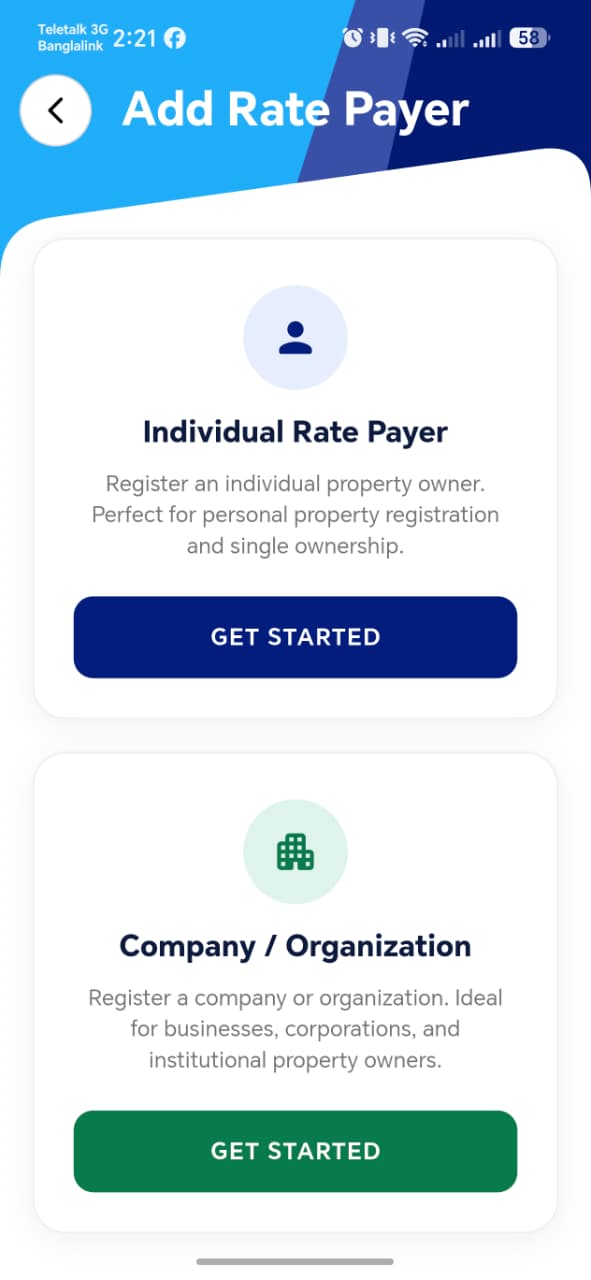
| Option | Description |
|---|---|
| Individual Rate Payer | For personal property registration and single ownership |
| Company / Organization | See Add Rate Payer — Company |
Step 1: Personal Info
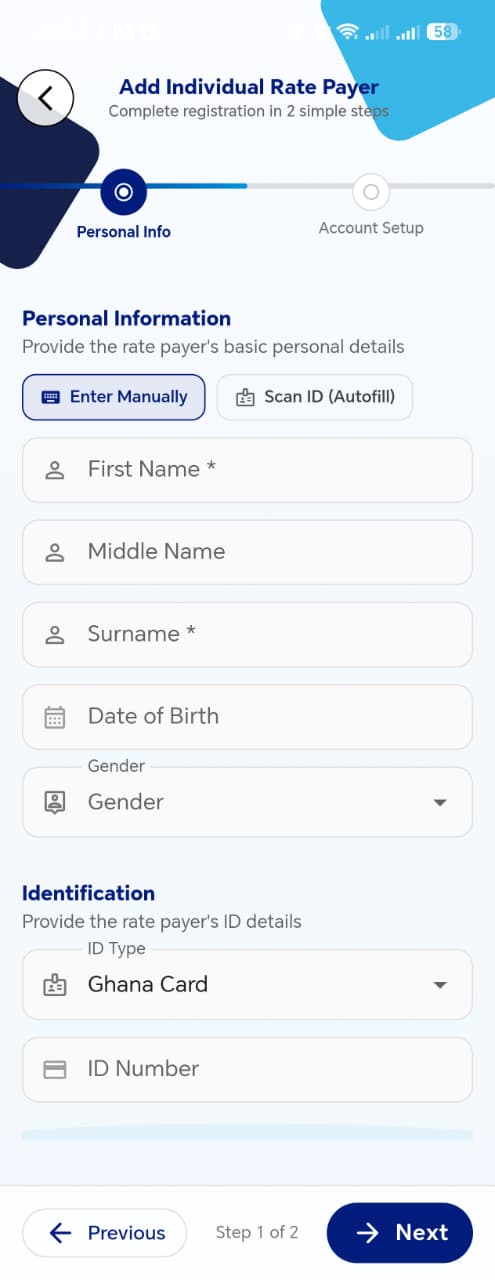
A toggle switches between Enter Manually and Scan ID (Autofill) — per the functional spec, scanning an ID auto-fills the form fields below.
| Field | Required | Notes |
|---|---|---|
| First Name | Yes | |
| Middle Name | No | |
| Surname | Yes | |
| Date of Birth | No | |
| Gender | No | Dropdown |
| ID Type | — | Dropdown, defaults to Ghana Card; spec lists Ghana Card / Passport / Voter ID / Driving License as options, and marks this Required even though it isn't visually flagged with an asterisk here |
| ID Number | — | Validated per the selected ID type, per spec — also not visually flagged as required here despite the spec marking it so |
Spec vs. screenshot
The functional spec marks ID Type and ID Number as Required, but neither shows a red asterisk on this screen the way First Name and Surname do. Worth confirming with the dev team whether these are actually enforced as required before Next is enabled.
Things to check
- Scan ID (Autofill) correctly populates First Name, Surname, Date of Birth, ID Type, and ID Number from a real Ghana Card / Passport / Voter ID / Driving License
- Switching ID Type updates the ID Number validation pattern accordingly (per spec, each ID type has its own format rule)
- What happens if a scanned ID's photo is blurry or the scan fails — is there a clear retry path back to manual entry?
Step 2: Contact & Account Setup
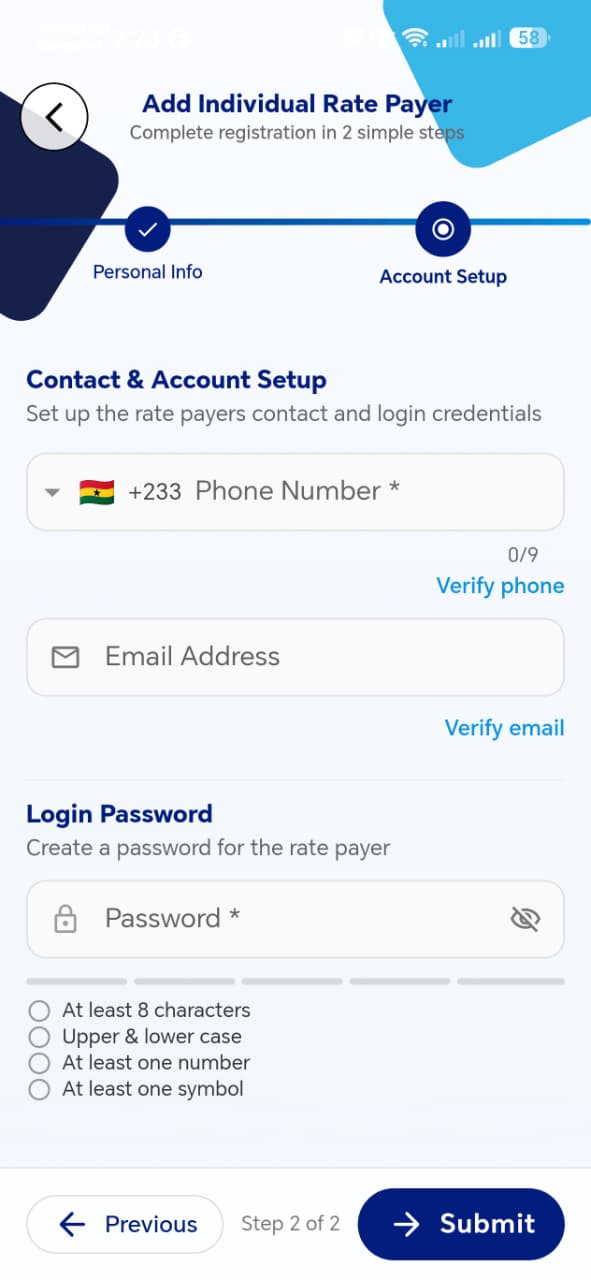
| Field | Required | Notes |
|---|---|---|
| Phone Number | Yes | Country code selector (defaults +233) + number, with a Verify phone link that triggers OTP |
| Email Address | No | With its own Verify email link/OTP |
| Password | Yes | Strength meter, 4 rules: at least 8 characters, upper & lower case, at least one number, at least one symbol |
| Confirm Password | Yes | Must match Password |
Verify Phone Number
Tapping Verify phone opens an OTP modal:
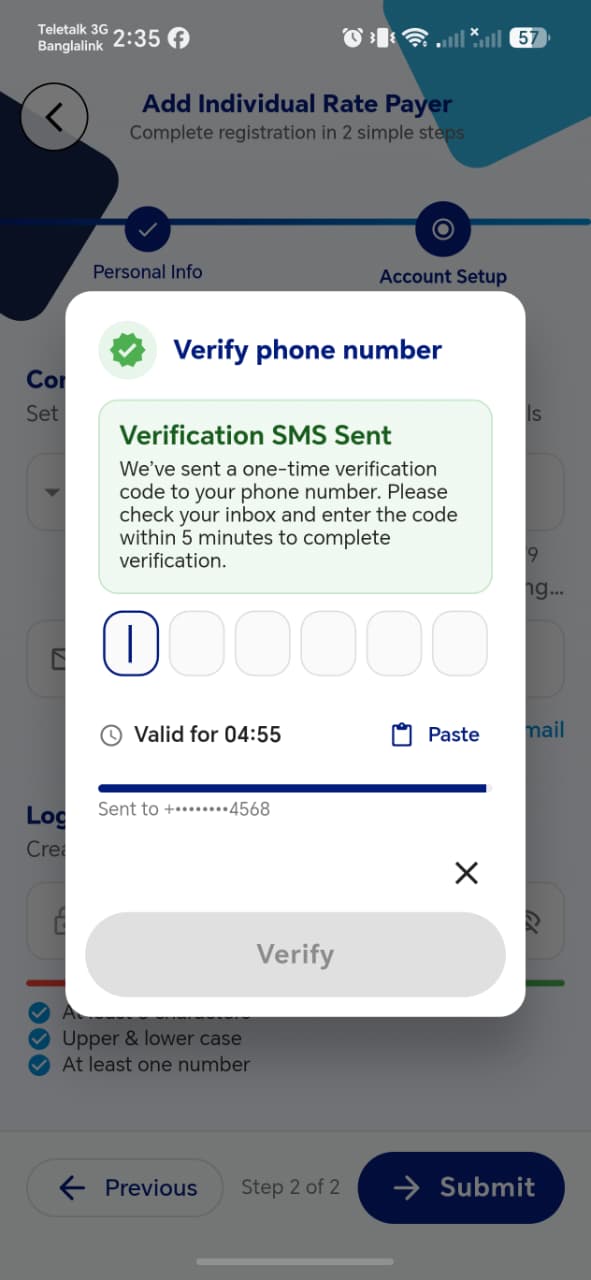
| Element | Description |
|---|---|
| Verification SMS Sent notice | Confirms the OTP was texted to the entered number |
| 6-digit code input | One digit per box |
| Countdown timer | e.g. Valid for 04:55 |
| Paste | Pastes a copied code directly into the boxes |
| Masked destination | e.g. Sent to +•••••••4568 |
| Verify | Disabled until all 6 digits are entered |
The same pattern applies to Verify email, sending a code to the entered email address instead.
Submission
Once both phone and email are verified (and the password rules are all satisfied), Submit completes registration:
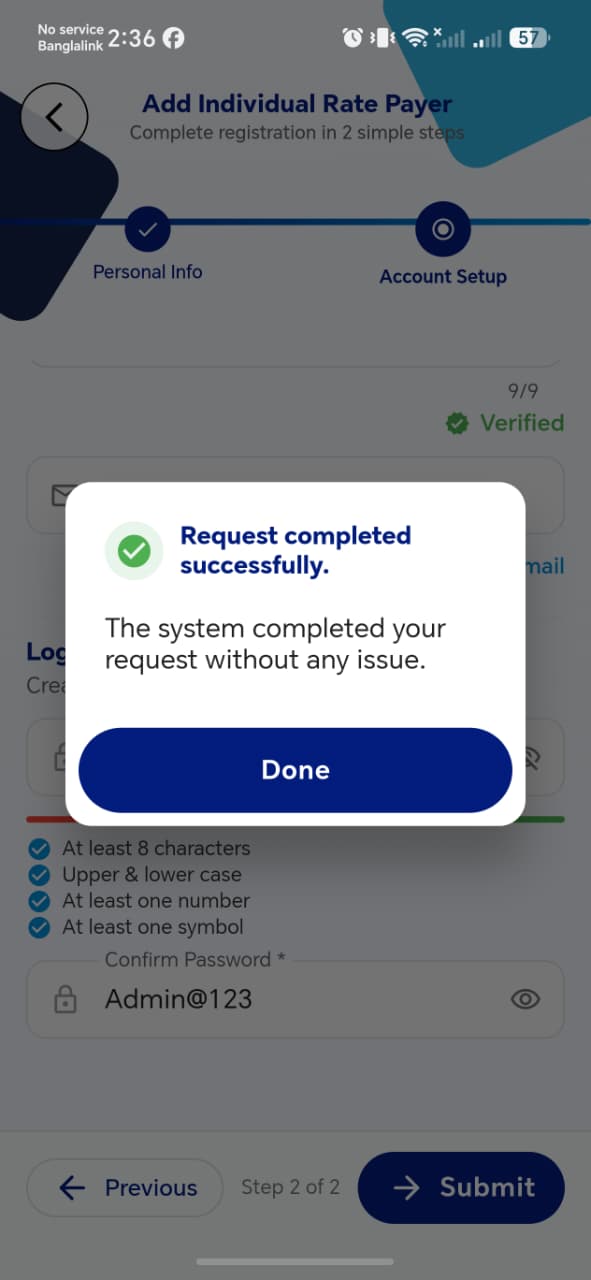
A confirmation dialog reads "Request completed successfully" with a Done button.
Things to check
- Submit is genuinely blocked if either phone or email verification hasn't been completed — confirm this isn't just a visual suggestion
- Entering a wrong OTP code shows a clear error and allows retry within the time limit
- The OTP expires when the countdown hits zero, and an expired code is rejected
- After Done, the new rate payer appears immediately in the Ratepayer list
- Test with Email Address left blank (it's optional) — confirm the form still submits successfully using only phone verification